The editor on your phone
Highlights
- A phone layout: one pane at a time, with tabs for Chat, Model, Code and Customizer
- Paste OpenSCAD code into the chat and open it in the editor, no AI turn spent
- Export the .scad file from the viewer, with your customizer values written in
- A tidier Code tab toolbar and one consistent menu across the app
- A new welcome card that folds away once you send your first message
What’s new
The editor on your phone
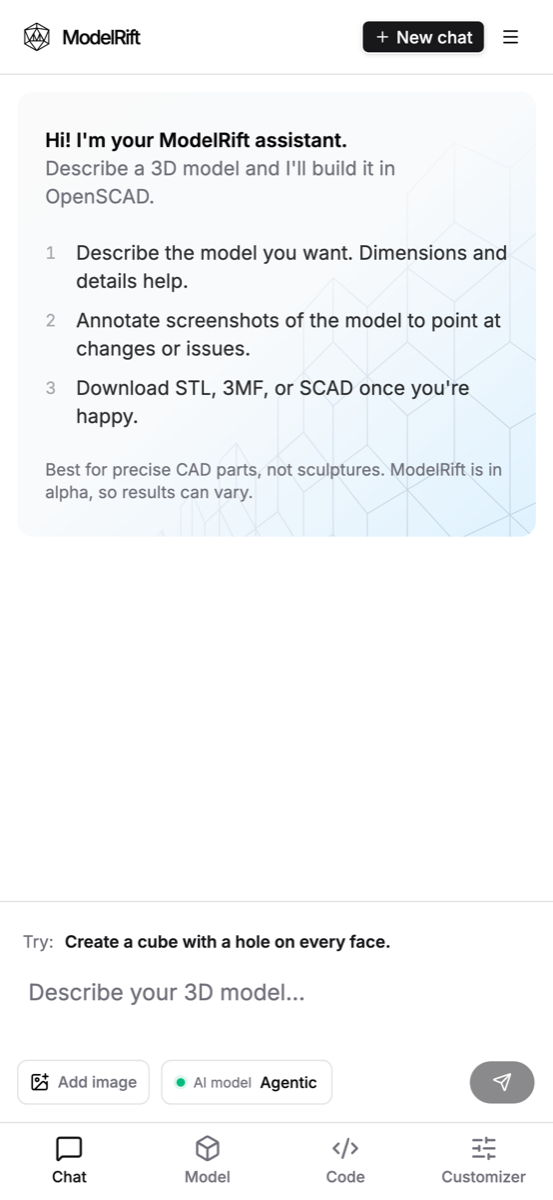
On a narrow screen the editor used to squeeze the 3D viewer into a sliver next to the chat. Now it shows one pane at a time, with a tab bar at the bottom: Chat, Model, Code and Customizer.
- A dot on the Model tab means a new version has arrived while you were in the chat.
- Hold a finger on an object in the viewer to open its menu (go to code, ask AI about it, hide or isolate it), the way right-click works on desktop.
- “Go to code” and “Ask AI about this object” switch to the right tab for you. Annotating a screenshot brings the model forward and returns you to the chat with the image attached.
- The panels over the model start collapsed, and the chat input no longer zooms the page in on iPhone.
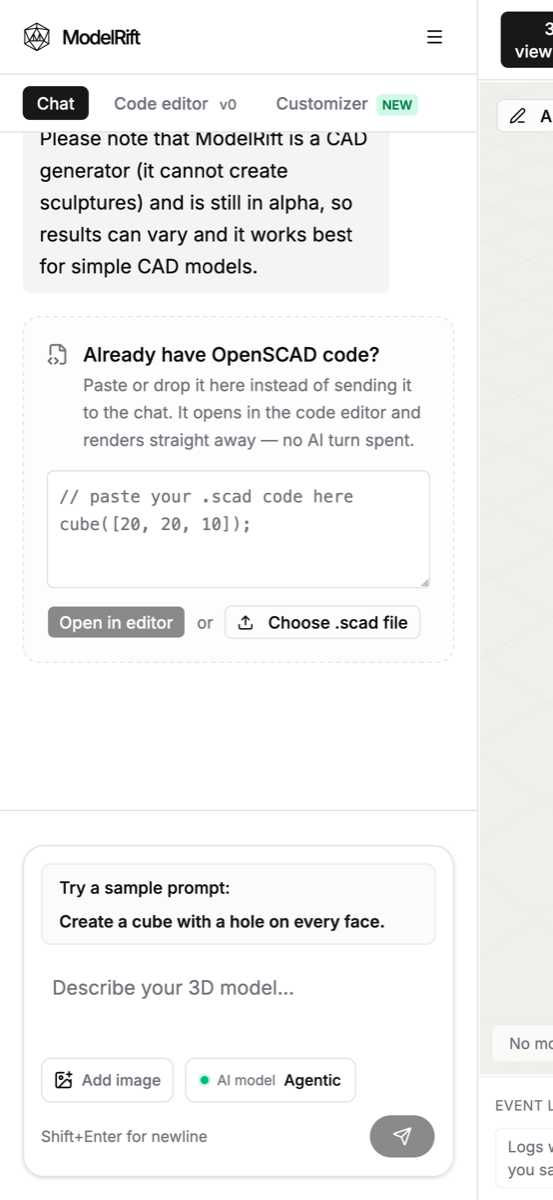
Paste code straight into the chat
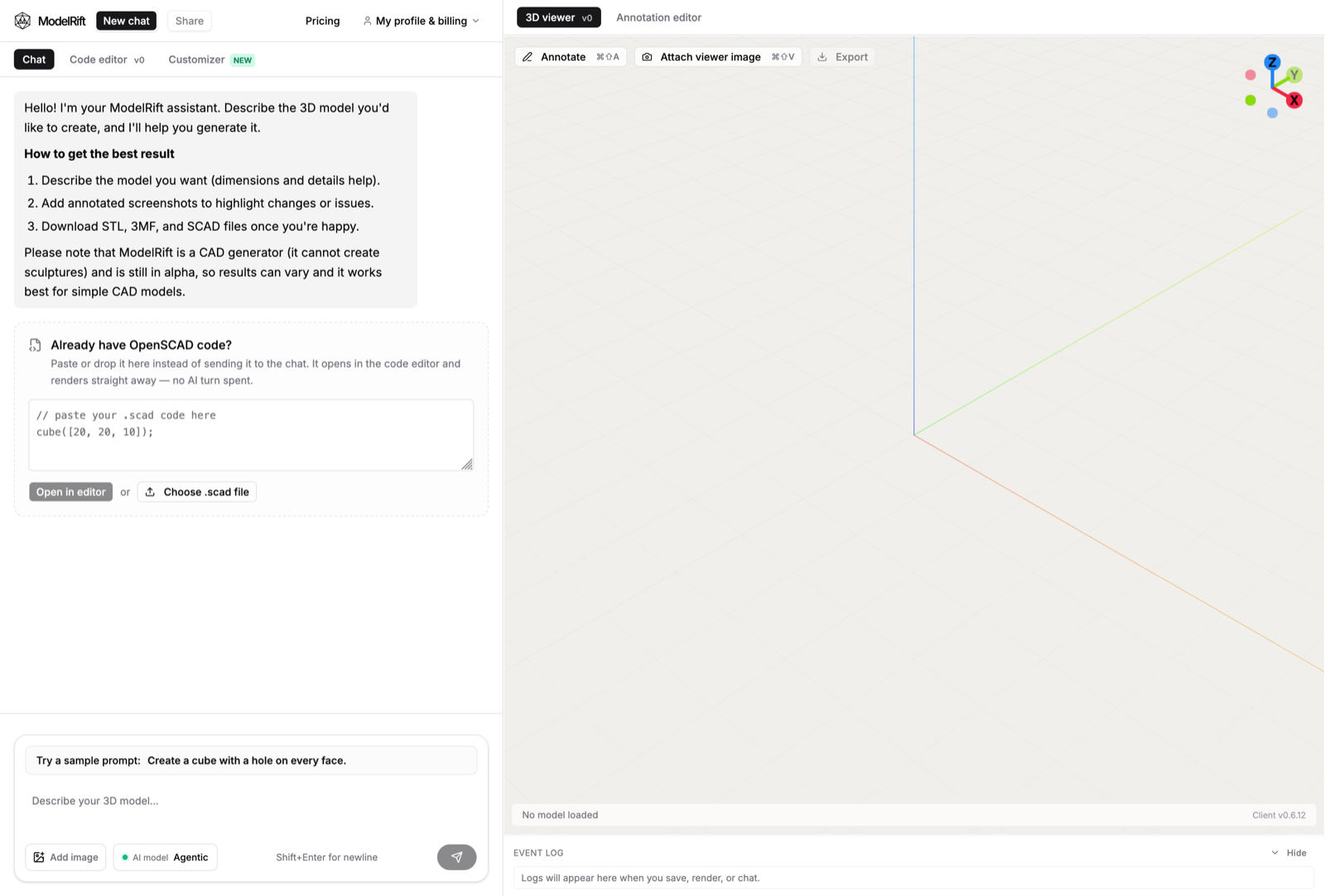
The separate “Already have OpenSCAD code?” box is gone. Paste your code into the regular chat input instead: when it looks like OpenSCAD, a bar above the input offers Open in editor (it opens as a new revision and renders, with no AI turn spent) or Send to AI (for “fix this” questions). Dropping a .scad file onto the chat opens it in the editor too.
Export the SCAD file
The viewer’s Export dialog now offers Export SCAD next to STL and 3MF. If you changed parameters in the customizer, the exported file has your values written into it, so it matches the customized mesh.
A new welcome, and a cleaner start
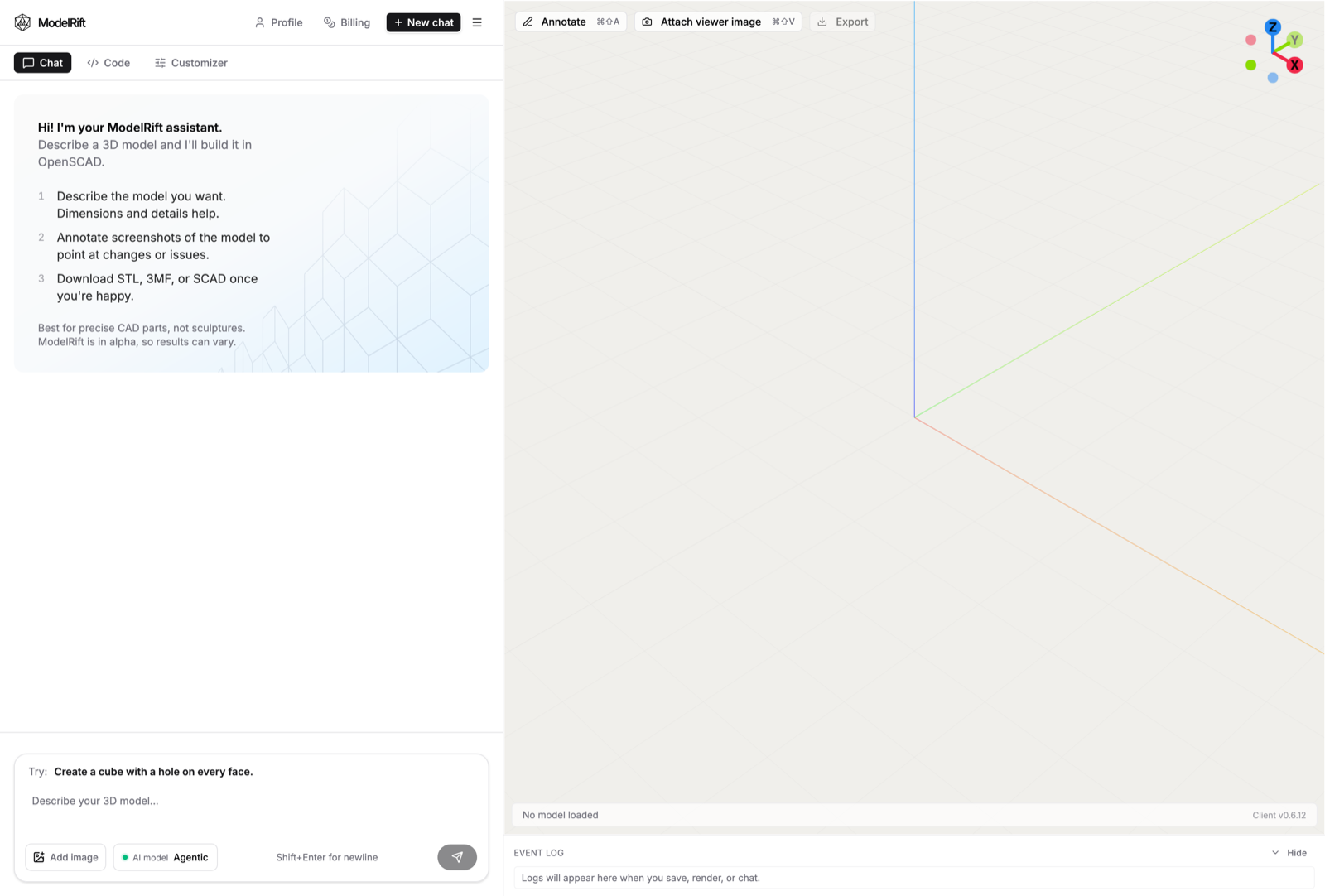
A new chat opens with a short welcome card instead of a long assistant message, and the card folds away once you send your first message.
Before:
After:
Code tab toolbar
The Code tab’s toolbar is now a single row: step through revisions with ‹ ›, and only the actions that apply right now (Save and Discard while editing, Revert on an older revision, Diff). Copy, download and delete moved into a ⋯ menu. Diffs show in one column, which fits the pane.
One menu, the same names everywhere
The editor and the Profile, Sessions and Billing pages now share the same menu and the same names: Editor, Sessions, Profile, Billing. Pricing and credits live under Billing, and the menu shows your credit balance. When there is room, the editor header shows Profile and Billing as links.
Fixes
- The first message in a new chat could take about a second to appear after pressing Enter.
- Opening an existing session briefly showed the welcome message before its history loaded.
- The viewer had an empty bar above it in a new session.